Animated PowerPoint Slide Design Tutorial
TL;DR
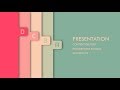
This tutorial demonstrates how to create a visually appealing, layered infographic slide in PowerPoint using basic shapes, text, and motion path animations.
Key insights
Creating a layered, infographic-style slide in PowerPoint.
- Utilizes basic shapes (rectangles) to create a layered effect.
- Employs a color palette with distinct shades for each layer.
- Incorporates text elements (letters A, B, C, D) to label the layers.
- Applies shadow effects to enhance the depth and visual appeal of the layers.
Dynamic Animation of Slide Elements.
- Uses 'Line' motion paths for animating elements.
- Animations are set to trigger 'On Click' with a duration of 01.25 seconds.
- Elements are animated sequentially to create a reveal effect.
- Animations are applied to text boxes and shapes to simulate movement across the slide.
Customization of Shape and Text Properties.
- Adjusts shape fill colors to match the desired aesthetic.
- Modifies font type ('DAGGERSQUARE') and size for text elements.
- Applies shadow effects to text elements for depth.
- Uses 'Send to Back' to layer shapes correctly.
Key moments
- 00:01Introduction to the animated PowerPoint slide design.
- 00:16Changing the background color of the slide.
- 00:31Inserting and shaping a rectangle for the first layer.
- 01:07Adding a text box and formatting it with a specific font and size.
- 01:37Duplicating and arranging text elements for subsequent layers.
- 02:33Applying shadow effects to the shapes for depth.
- 03:12Adjusting the layering of shapes using 'Send to Back'.
- 04:46Adding 'Line' motion path animations to the elements.
- 04:51Configuring animation effect options, setting direction to 'Right'.
- 05:00Setting animation duration to 01.25 seconds.
- 05:17Applying animations to the remaining elements.
- 05:46Copying and pasting elements from previous slides.
- 05:53Finalizing the animated slide design.